Changemyip Account - How to Find Your Purchased Proxies?
Learn how to find and download your recently purchased HTTP proxies or SOCKS5 proxies. This step-by-step guide shows where to access your active proxies, filter them, and troubleshoot pending payments.
Account - How to find your purchased proxies?
Learn how to find and download your recently purchased HTTP proxies or SOCKS5 proxies.
Accessing Your Purchased Proxies After Payment
Once you have successfully placed an order and the payment has been approved, your proxies will be activated immediately. To locate and manage your purchased proxies, follow the steps outlined below:
Step-by-Step Guide to Access Your Proxies
-
Log In to Your Account: Start by signing into your account on our website, ensuring you have a secure connection for your privacy and data protection.
-
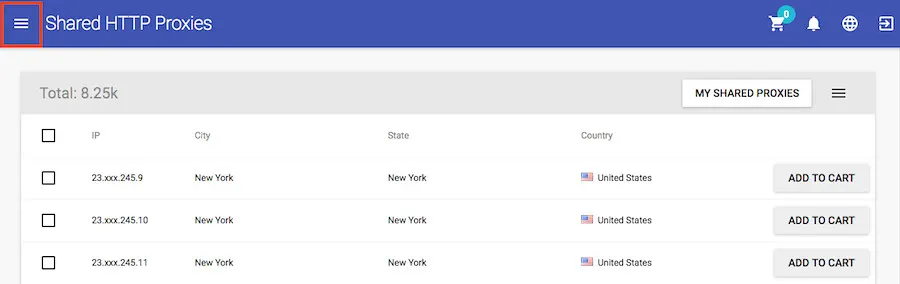
Open the Navigation Menu: Click on the hamburger icon located in the top left corner of the page to expand the menu options if they are not already visible.
-
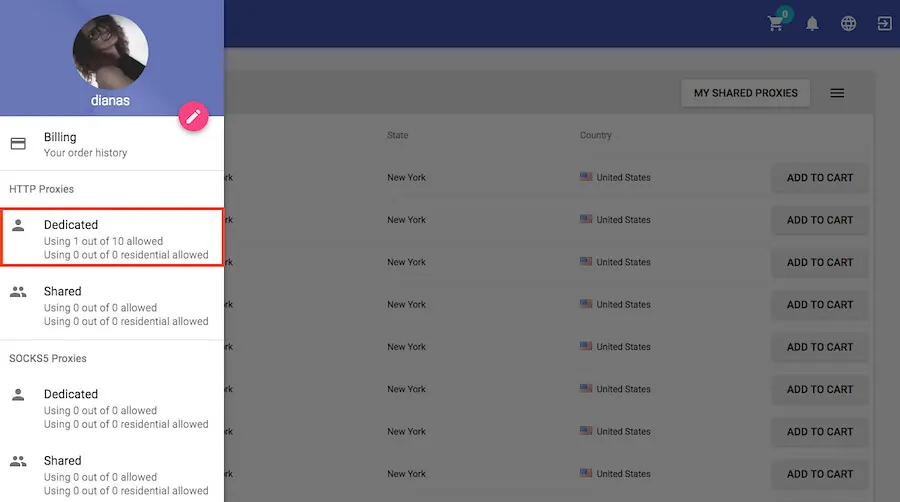
Navigate to Proxy Categories: On the expanded menu, you will see different proxy categories. Select the category that corresponds to the type of proxies you have purchased.
-
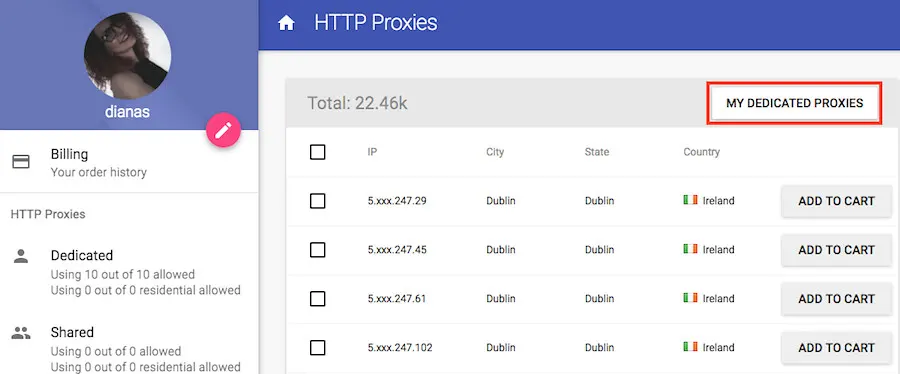
Go to Your Dedicated Proxies: After selecting the appropriate category, click on My Dedicated Proxies to view a list of your active proxies.
-
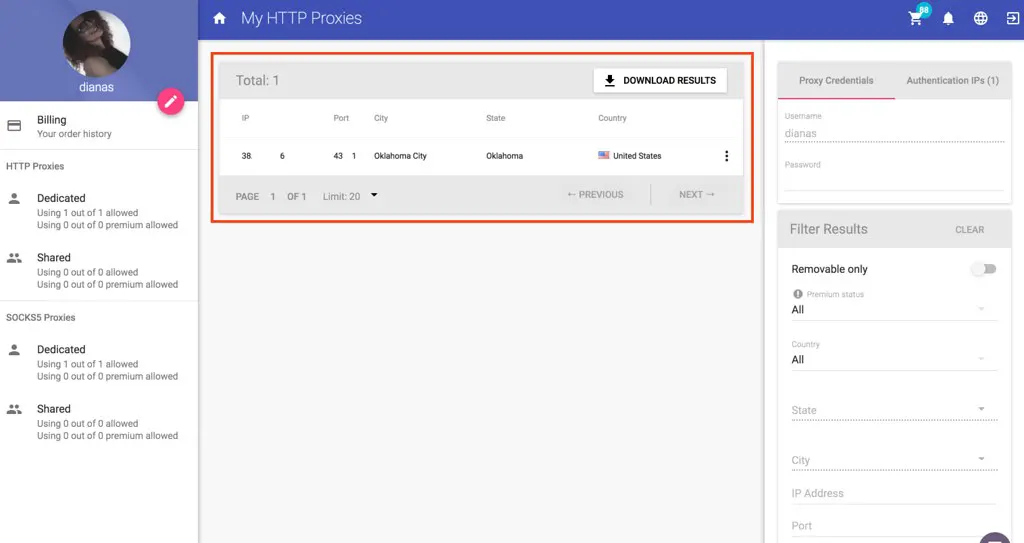
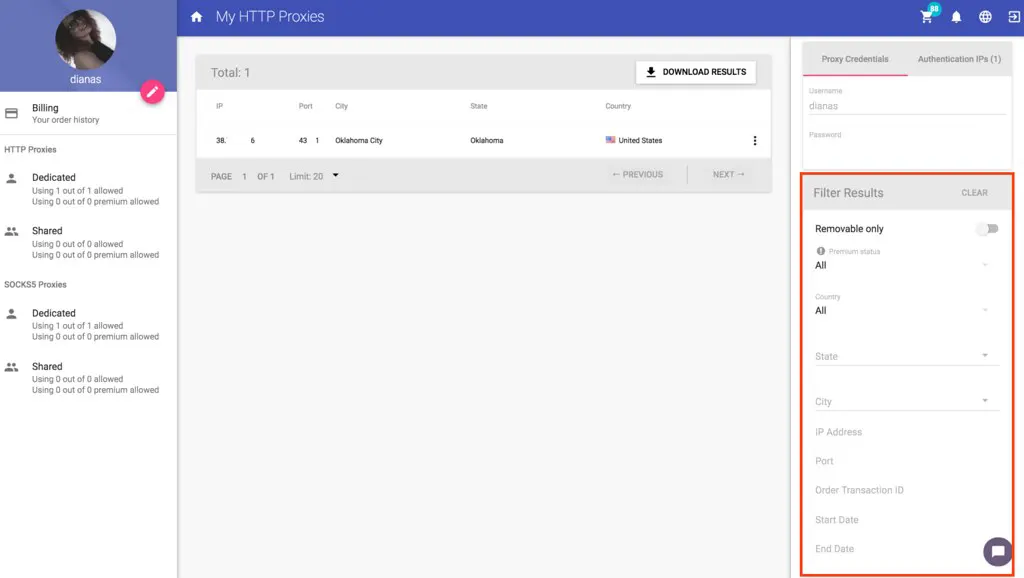
Review Your Active Proxies: You will be presented with a list of all active proxies associated with your account within the selected category, such as HTTP Dedicated Proxies in this example.
-
Utilize Filters for Convenience: To quickly locate specific proxies, use the filtering options provided in the right-hand column of the list.
-
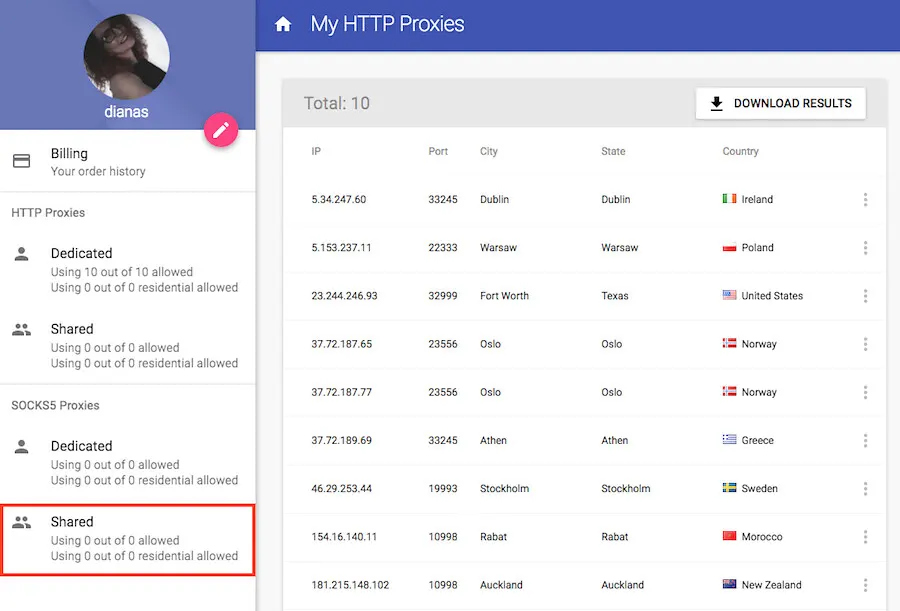
For Different Proxy Types: The process is identical for any proxy category. For instance, if you've bought shared SOCKS5 proxies, select the "Shared" category under the "SOCKS5 Proxies" section and repeat the same steps.
Troubleshooting: Proxies Not Visible
If you cannot see your purchased proxies in the "My Dedicated Proxies" section, it may indicate a pending payment.
- Check Payment Status: Visit the "Billing" tab to verify your order status. If "Payment Pending" is displayed next to your order, it means the payment is still being processed.
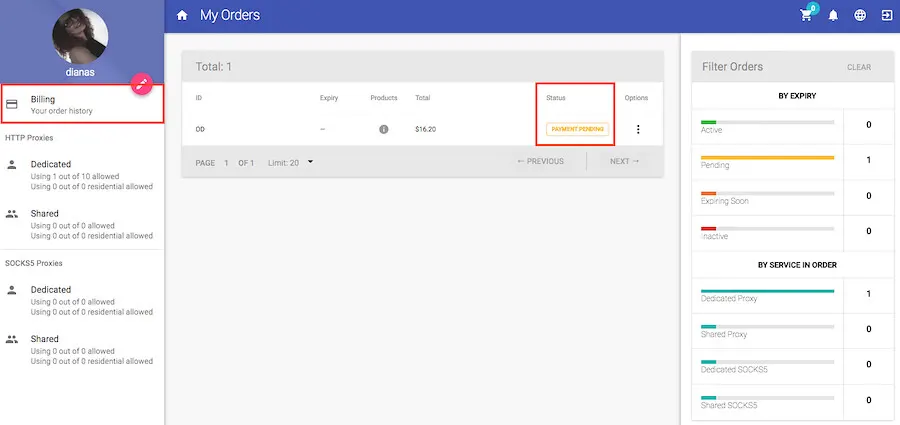
- Order Activation: Once your payment is processed, the order status will update to "Active." At that point, you can revisit the "My Dedicated Proxies" tab to see your active proxies.
By following these instructions, you can access and manage your purchased proxies efficiently. If you encounter any issues or have questions, our support team is available to assist you.